
|
 |

|
|
|
|
|
|
Assumption is the mother of all screw-ups.
If you choose not to decide, you still have made a choice, Neil Peart

Text-to-speech (TTS) is computer technology that converts written text into spoken audio. It is often called “read aloud” or speech synthesis technology. Text-to-speech technology has transformed from robotic computer voices to natural, human-like speech that powers modern voice experiences.
Qwen3-TTS is a powerful family of AI text-to-speech models developed by Qwen.
ElevenLabs (Free Tier) — Best natural voice quality.
~10,000 characters/month free.
Extremely natural voices; best free AI voice quality in 2026.
Ideal for narration, TikTok/YouTube voiceovers, short scripts.
Microsoft Edge Read Aloud. Built into Edge, unlimited usage.
No MP3 export (you’d need external capture).
FreeTextToSpeech.com. No login required. Unlimited usage (no daily/weekly caps). Free MP3 downloads.
No watermark. No attribution requirement. No commercial-use restrictions (this is the big one). Fast generation, simple UI.
Voice quality is decent but not as strong as TTSMaker’s premium voices.
TTSMaker. Very large voice library (600+ voices). Neural voices with good clarity. Weekly character limit per IP.
Qwen3-TTS is a powerful family of AI text-to-speech models developed by Qwen. It is designed to generate natural, expressive, human-like speech and offers several advanced capabilities, including:
Wan2GP is a local AI application that brings together a wide range of AI-powered tools in a single interface - from video, Text to speech, voice cloning, image generation and more.
Before starting, make sure you have sufficient disk space and a compatible NVIDIA GPU if you intend to use GPU acceleration.
Open Command Prompt or PowerShell and follow these steps.
# Before creating the virtual environment, you need to install Git and Miniconda on your computer.
# Change to the drive where you want to install Wan2GP
d:
# Clone the Wan2GP repository
git clone https://github.com/deepbeepmeep/Wan2GP.git
# Enter the Wan2GP folder
cd Wan2GP

# Create a virtual environment using Python 3.11
conda create -n wan2gp python=3.11.14
# Activate the Virtual Environment
conda activate wan2gp
# Install PyTorch with CUDA support
pip install torch==2.10.0 torchvision torchaudio --index-url https://download.pytorch.org/whl/cu130
# Install the required dependencies
pip install -r requirements.txt
# Start Wan2GP
python wgp.py
...
# After launching the application, you should see a message similar to:
* Running on local URL:  http://localhost:7860
# Open this address in your web browser to access the Wan2GP interface.
Once Wan2GP is running, follow these steps to generate speech.
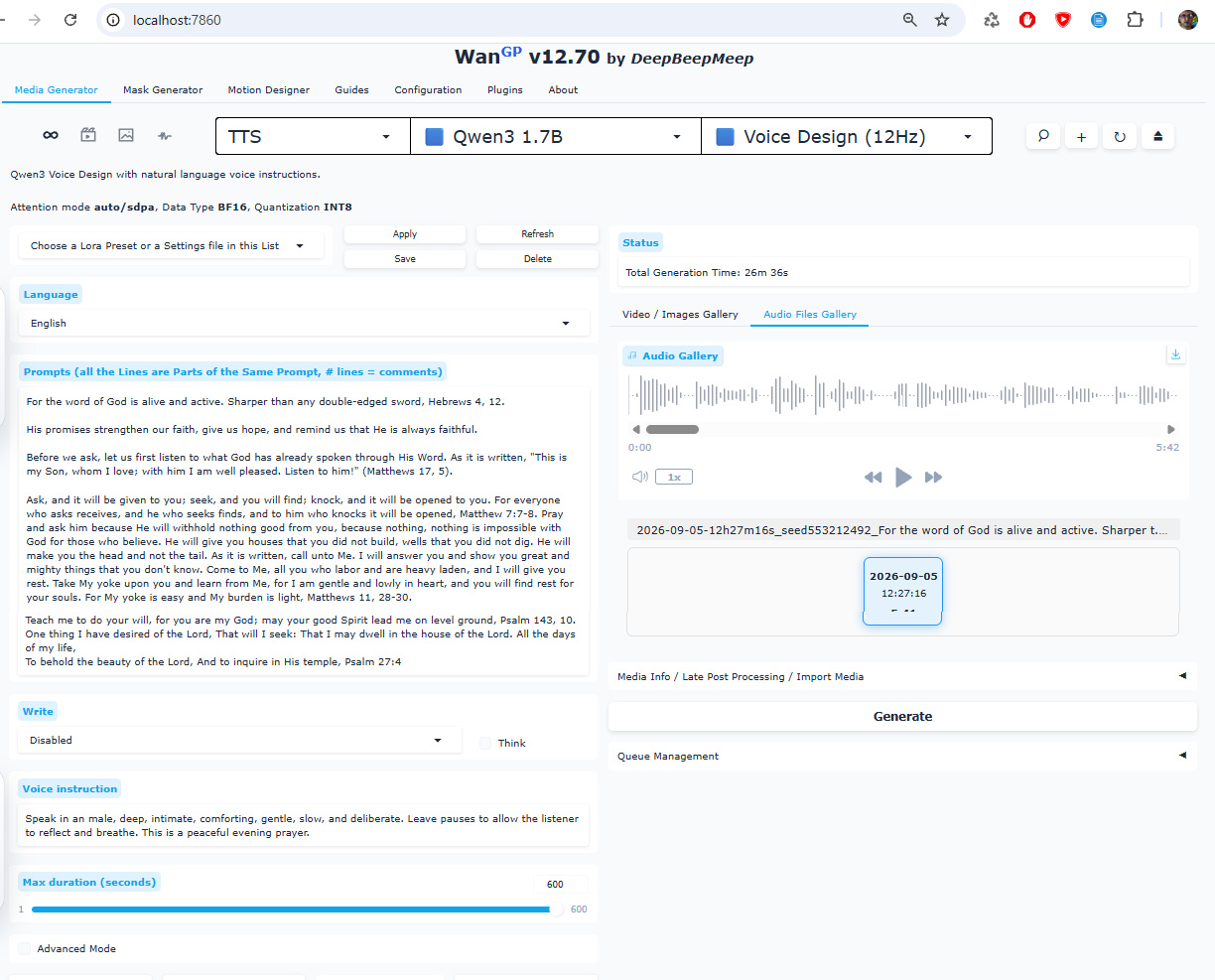
[style: calm, reverent, intimate]
[pace: slow]
The Lord is my shepherd, I lack nothing.
He makes me lie down in green pastures, he leads me beside quiet waters, he refreshes my soul.
He guides me along the right paths for his name’s sake. [pause: 1.5s]
Even though I walk through the darkest valley, I will fear no evil, for you are with me;
your rod and your staff, they comfort me. [pause: 1.5s]
You prepare a table before me in the presence of my enemies. You anoint my head with oil; my cup overflows.
[pause: 1.5s] Surely your goodness and love will follow me all the days of my life,
and I will dwell in the house of the Lord forever... [pause: 1.5s] [end of prayer]
Open your browser and go to elevenlabs.io. When the page opens, look toward the top right corner for a button that says “Sign up”. Because we are seeking the free version, we can simply use an existing Google account.
Once you are signed in, you will find yourself in your dashboard. Look for a section labeled “Text to Speech”.
Locate the Model Selection dropdown (it usually sits right next to or below the Voice selection). Click it and explicitly select Eleven v3.
In the center, you will see a large, open text box. This is where you will place your prayer.
Use dashes (—) and ellipses (…): These cause your character to drop his pitch slightly at the end of words, introducing a vulnerable, conversational sigh. \
Selecting the Voice of Comfort. Just above or beside your text box, you will see a dropdown menu showing a name. This is the voice selection.
Look for tags or descriptions next to the names like “Calm”, “Deep”, “Warm”, or “Narrative”, e.g., Marcus - Classic Audiobook Narrator.
Set the Stability slider slightly lower (around 40% to 50%). Because V3 relies on “creative breathing room” to act out emotions, keeping stability too high can accidentally suppress the tags.
Breathing Life into the Prayer. When everything feels ready, look below your text box for the button that says “Generate” (it often looks like a small play icon or a waveform). Click it, and sit quietly for a few moments. The system is weaving the voice into your words.
Once the voice speaks the prayer completely, you will hear it play. If your heart feels at peace with how it sounds, look for a small download icon (an arrow pointing down into a line) near the audio player at the bottom. Click it, and the audio file will be safely saved to your device.
[deep breath]
The Lord... is my light... and my salvation.
Whom... shall I fear?
The Lord is the strength of my life — of whom shall I be afraid?
When the wicked came against me to eat up my flesh, my enemies and foes... they stumbled... and fell.
Though an army may encamp against me — my heart shall not fear.
Though war may rise against me, in this... I will be confident.
One thing I have desired of the Lord, that will I seek — that I may dwell in the house of the Lord... all the days of my life.
To behold the beauty of the Lord... and to inquire... in His temple.
For in the time of trouble... He shall hide me in His pavilion.
In the secret place of His tabernacle... He shall hide me.
He shall set me high... upon a rock.
And now... my head shall be lifted up... above my enemies all around me.
Therefore... I will offer sacrifices of joy in His tabernacle.
I will sing — yes, I will sing praises... to the Lord.
Hear, O Lord, when I cry with my voice.
Have mercy also upon me... and answer me.
When You said, “Seek My face,” my heart said to You, “Your face, Lord... I will seek.”
Do not hide Your face from me.
Do not turn Your servant away in anger.
You have been my help — do not leave me... nor forsake me... O God of my salvation.
When my father and my mother forsake me... then the Lord... will take care of me.
Teach me Your way, O Lord.
And lead me in a smooth path — because of my enemies.
Do not deliver me to the will of my adversaries... for false witnesses have risen against me... and such as breathe out violence.
I would have lost heart... unless I had believed that I would see the goodness of the Lord... in the land of the living.
Wait on the Lord.
Be of good courage... and He shall strengthen your heart.
Wait...
I say...
On the Lord.

JustToThePoint Copyright © 2011 - 2026 Anawim. ALL RIGHTS RESERVED. Bilingual e-books, articles, and videos to help your child and your entire family succeed, develop a healthy lifestyle, and have a lot of fun. Social Issues, Join us.
This website uses cookies to improve your navigation experience.
By continuing, you are consenting to our
use of cookies, in accordance with our Cookies Policy and
Website Terms and Conditions of use.